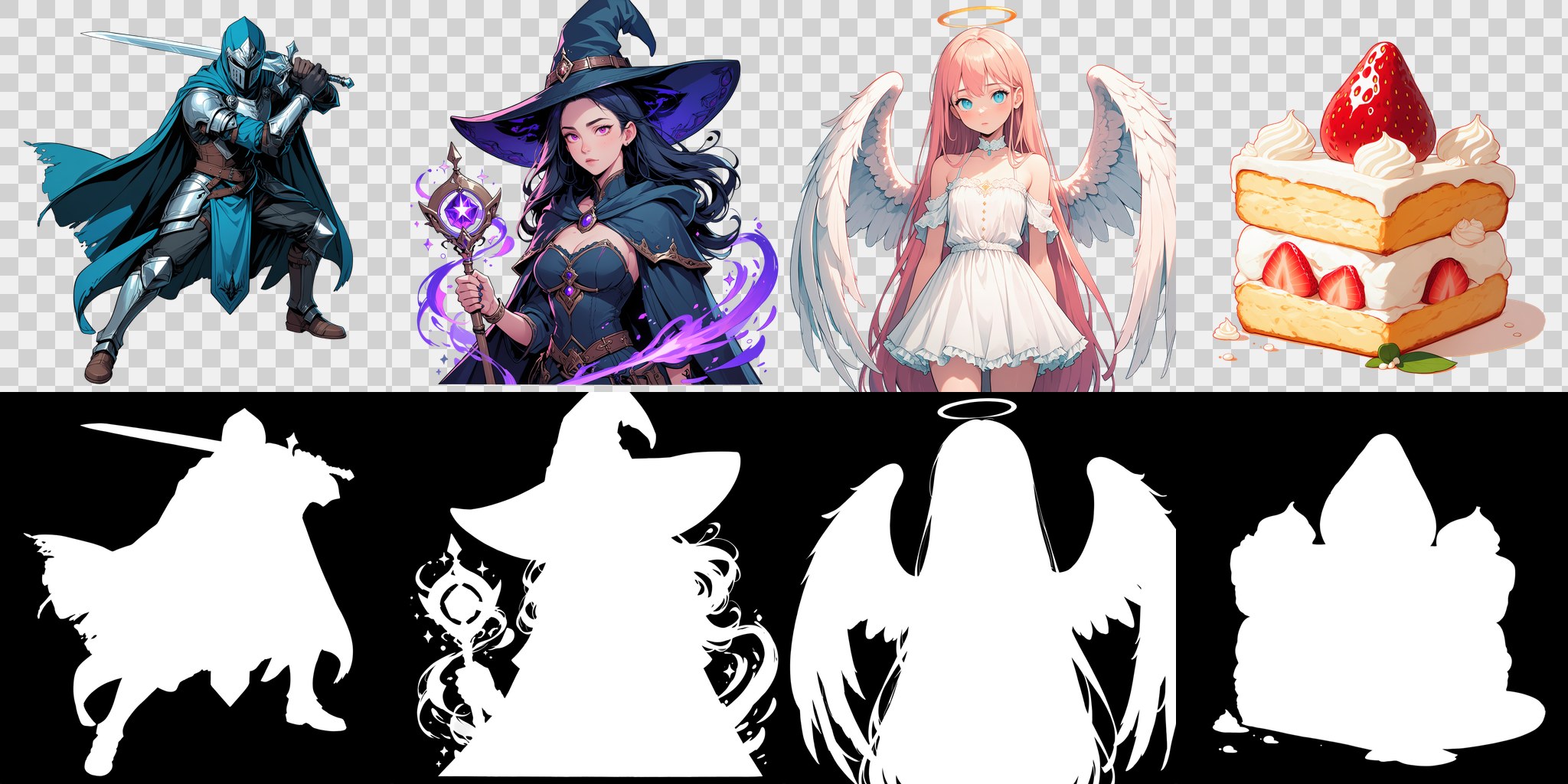
Anima-RGBA can generate a transparent PNG directly from an Anima workflow in ComfyUI. The practical change is a matched pair: an RGBA VAE that decodes an alpha channel, and a LoRA that helps Anima produce latents suited to that decoder. Add the transparency trigger, keep the decoded image connected to Save Image, and check the saved file rather than judging transparency from a preview.
This Anima-RGBA tutorial builds a non-commercial evaluation workflow for an illustrated strawberry cake. It uses the settings and prompt published by Anima-RGBA author localai0301, with the upstream Anima workflow as the starting graph. No background-removal service or custom node pack is required by the author’s instructions. The downloads, node definitions and workflow structure were checked for this article; model inference was not run locally.
The repository was created on November 2, 2026, and its latest recorded commit at inspection was November 3. On November 4, Hugging Face reported 37 likes and 1,112 downloads for the adapter repository. These are observed platform counters, not evidence of a same-day viral trend or unique users. This tutorial uses a disclosed seven-day freshness fallback because same-day popularity was not established.
What Anima-RGBA changes, and what it does not
A white background is not transparency. Neither is a checkerboard painted into an RGB image. A usable cutout needs opacity information that an editor can use when placing the subject over another layer. The author’s RGBA VAE outputs straight, un-premultiplied RGB plus alpha. ComfyUI’s Save Image node can then write that four-channel image as a PNG.
The LoRA matters because adding an alpha channel to a decoder does not teach the base generator how to use it cleanly. The author reports that the replacement VAE alone produces hazy transparency, including partly transparent characters and white clothing. The paired LoRA was trained against latents from that VAE. Use both files for the first attempt rather than treating the VAE as an independent background-removal filter.
The intended material is anime and illustration. Fine hair, glass and smoke are documented weaknesses; the alpha tends to be mostly binary, and see-through clothing often becomes opaque. A clean cake cutout is a more useful first diagnostic than a glass ornament. Success here means saving a file with meaningful transparent pixels and a usable subject, not demonstrating physically accurate transmission through every material.
Check the prerequisites and license before downloading
Start with an existing ComfyUI installation that already runs Anima. The reference source version inspected here is ComfyUI v0.44.0: its VAE-loading code reads channel dimensions from the relevant weight tensors, and its core node definitions include the loaders, decoder and PNG saver used below. This is a source-checked reference version, not a claim that v0.44.0 is the minimum supported release or that every older build fails.
You need access to your active ComfyUI model directory, the Anima base diffusion model, its Qwen3 text encoder, and the two RGBA files. The adapter card gives no tested minimum VRAM requirement. Check that your existing Anima graph works before adding the adapter; this tutorial cannot supply a hardware guarantee or a dependency installation recipe the author did not publish. Keep a copy of your working workflow so the original VAE and model connections remain recoverable.
There is also a licensing distinction. The RGBA repository declares Apache-2.0 in its model-card metadata and identifies the VAE as derived from the Apache-2.0 Qwen-Image VAE. The underlying Anima repository carries the separate CircleStone Labs Non-Commercial License v1.2. Do not assume the adapter’s metadata makes the complete model stack unrestricted. Read the base terms, including their separate treatment of outputs, before planning production use; the workflow described here is for non-commercial evaluation.
1. Download the exact files into their model folders
Use the official Anima split-files directory for the base components and the Anima-RGBA repository for the matching adapter pair. The paths below are relative to the active ComfyUI installation. If you already use a shared model directory, retain your configured arrangement rather than creating a second installation accidentally.
- anima-base-v1.0.safetensors: place in
ComfyUI/models/diffusion_models/. - qwen_3_06b_base.safetensors: place in
ComfyUI/models/text_encoders/. - anima_rgba_vae.safetensors: place in
ComfyUI/models/vae/. - anima_rgba_lora.safetensors: place in
ComfyUI/models/loras/.
The RGBA card lists approximately 508 MB for the VAE and 184 MB for the LoRA. Those are additional files, not the entire download budget: a new installation also needs the base model and text encoder. Keep the original Qwen-Image VAE if you already have it. Select the RGBA VAE in this workflow rather than replacing another file’s contents or renaming the new decoder to impersonate the original.
2. Open the official Anima graph and select the base model
Download the official workflow-bearing example PNG and open or drag it into ComfyUI. Use the original PNG, not a browser screenshot or a recompressed copy. The upstream card documents this import method, and the retrieved file contains an embedded workflow with nine nodes.

Check the model selectors before running it. The embedded example still names anima-preview.safetensors, while the current card’s installation instructions name anima-base-v1.0.safetensors. Change the Load Diffusion Model node, whose internal type is UNETLoader, to the base-v1.0 file you downloaded. Keep Load CLIP pointed at qwen_3_06b_base.safetensors. The imported graph uses stable_diffusion as that loader’s type; preserve the supplied setting for this reference graph.
The original graph ends in Preview Image. That distinction matters because a temporary preview is not the persistent PNG export this task needs. Preserve the sampler, both text-encoding nodes and the latent-image connection. The next changes affect the model branch, VAE selection and output node, without rebuilding the conditioning graph from memory.
3. Connect the RGBA LoRA and replacement VAE
In Load VAE, select anima_rgba_vae.safetensors. Its output must still feed the VAE input of VAE Decode. Loading the file elsewhere in the graph is insufficient if the decoder remains connected to the ordinary Qwen-Image VAE.
Add the built-in model-only LoRA loader, internal type LoraLoaderModelOnly. Connect Load Diffusion Model’s MODEL output to its model input, select anima_rgba_lora.safetensors, and set strength_model to 1.0. Connect the loader’s MODEL output to KSampler’s model input, replacing the direct model-to-sampler connection. The adapter card says it trained the diffusion transformer only, leaving the text encoder and LLM adapter frozen, so this core model-only loader is a suitable way to apply the documented strength without changing the text branch.
Add Save Image and connect VAE Decode’s IMAGE output directly to its images input. Give the filename prefix a recognizable value such as anima_rgba_cake. You may keep Preview Image as a second consumer, but Save Image must receive the decoder’s image. Avoid inserting an RGB-only image-processing or conversion node between those two nodes during the baseline test.
4. Use the published cake prompt and baseline settings
For the first run, use the author’s cake example instead of a complex composition. Enter the following positive prompt in the positive CLIP Text Encode node. It includes the exact transparency trigger and the example prefix used in the RGBA card, rather than silently combining settings from the base model’s different recommendations.
masterpiece, best quality, newest, safe, no humans, transparent background, food, strawberry shortcake, fruit, still lifeUse the source’s negative prompt in the negative text-encoding node:
worst quality, low quality, score_1, score_2, score_3, blurry, jpeg artifactsSet Empty Latent Image to 1024 by 1024 with batch size 1. Set KSampler to 30 steps, CFG 4.5, sampler er_sde, scheduler simple, and denoise 1.0. Use seed 101, the seed published for the cake example, and change the imported graph’s seed control from randomize to fixed if you want to compare revisions. Keep the RGBA LoRA at 1.0 and leave other adapters out of this first test.
Queue one image and save the workflow under a new name. These settings reproduce the documented configuration, not a promise of pixel-identical output across software environments. The source’s separate turbo-and-style tests use a different configuration; importing their shorter step count or CFG 1 into this base-model test would obscure which change affected the result.

5. Verify the saved PNG rather than its preview
Open the saved file from ComfyUI’s output directory in an editor that supports transparency. Place a solid dark layer below it, then try a light layer. Look for background remnants around the cake, holes in the cream, and fringes near the garnish. A checkerboard in a viewer is useful context, but moving the image over another layer is a more direct check that opacity information survived export.
If you already have Python and Pillow, the following optional inspection reads the actual file without running a model. Save it as check_alpha.py and run python check_alpha.py path/to/your-output.png using your existing Pillow-enabled interpreter. It reports the native mode before any conversion, then the alpha range and number of pixels below full opacity. Do not convert an RGB image to RGBA first: that would manufacture an opaque alpha channel and conceal the original format.
import sys
from PIL import Image

with Image.open(sys.argv[1]) as image:
    print("format:", image.format, "mode:", image.mode)
    if image.mode != "RGBA":
        raise SystemExit("Expected a native RGBA PNG")
    alpha = image.getchannel("A")
    histogram = alpha.histogram()
    print("alpha range:", alpha.getextrema())
    print("pixels below full opacity:", sum(histogram[:255]))
An RGBA mode alone does not prove a useful cutout. An alpha range of 255 to 255 means every pixel is opaque; a positive count below full opacity establishes some transparency, not good subject separation. This checker was executed against the author’s downloaded cake PNG, which contains both fully transparent and fully opaque alpha values. That verifies the source asset and the inspection code, not the output of a locally executed generation.
Troubleshoot one variable at a time
If the background stays opaque, first check the exact VAE selection, LoRA selection, sampler connection and prompt trigger. The author recommends increasing the trigger weight, for example replacing the plain phrase with (transparent background:1.3), rather than increasing LoRA strength. Keep the seed fixed while comparing. Close-ups that fill the frame and stacked LoRAs are documented cases where an opaque white background can remain.
If the subject looks faint or white areas become transparent, confirm that the LoRA sits on the model path actually reaching KSampler. The card identifies hazy alpha as a problem when the replacement VAE runs without its matching adapter. If you see stray translucent debris after raising the LoRA, return to strength 1.0: the author reports extra debris and smoke at 1.5. Neither adjustment is a substitute for confirming the correct files loaded.
If the output becomes RGB, inspect the final path back from Save Image. Compare it with the direct VAE Decode connection described above, and remove intermediate conversions for the diagnostic run. If a filename is missing from a selector, check the active model directory and spelling against the download list. If loading fails on an older installation, compare its version with the source-checked v0.44.0 reference before adding unrelated extensions.
Keep the first accepted PNG together with its workflow, prompts, seed and exact model filenames. Test its edges at the size and background you intend to use. The author documents weaknesses in fine semi-transparent detail, so inspect those regions manually instead of treating a valid alpha channel as a finished asset.
Sources
- Anima-RGBA model card, prompts, settings, tests and limitations
- CircleStone Labs Anima installation and prompting reference
- ComfyUI v0.44.0 core loader, decoder and Save Image definitions
- ComfyUI v0.44.0 VAE loading and channel handling
Tags: Anima-RGBA, ComfyUI, Transparent PNG, Image Generation, Alpha Channel