A safe ComfyUI v0.43.2 update should leave you with two usable things: a verified installation at the intended version and a working route back to your previous setup. Updating until the interface opens is not enough. The Python environment, frontend package, custom nodes and saved workflows also need checking before you trust the installation with unfinished work.
Upstream evidence checked on November 1, 2026 confirms the v0.43.2 tag at commit 423cbd20511becb1f16122ab518e92e58bfa03d9. Its version commit is dated October 30 at 01:24:06 UTC. GitHub’s release-tag page resolves, but the release API returned no corresponding published release object. This guide therefore targets the verified source tag, not an assumed downloadable Portable build or guaranteed Desktop Stable offering. Same-day popularity evidence was insufficient; the reason for covering it now is the recent tagged update, not a claim that it is today’s viral workflow.
The task below requires no new model, LoRA, paid account or partner API call. The first workflow check simply loads and saves your own image. It tests basic execution and file handling before you restore a larger generative workflow.
Check whether this update addresses your needs
The upstream comparison with v0.43.1 contains four commits. Besides the version change, it updates workflow templates to 0.11.100, adds target-resolution choices to the Flux Video Upscale V2 partner node, and adds context-window region editing to Ideogram 4.5 Precise Edit. These are separate changes from the earlier MOSS and Fibo support discussed around v0.43.0.
You do not need to execute those partner nodes to verify the update, and this tutorial does not configure their services. If your current production workflow works and none of these changes matters to it, keep the working installation and test the newer tag in a separate copy. A release comparison is evidence of changed code, not a promise that every community node works with it.
Prepare the installation and recovery copy
Start with an existing working ComfyUI installation, access to its files, enough storage for a separate backup, and an internet connection to GitHub and Python package sources. For the exact-tag route, Git must be available and the ComfyUI code directory must be a Git clone. A downloaded source archive without Git metadata cannot use the checkout commands below. Windows Portable commands use PowerShell; manual-install commands run from the ComfyUI code directory after activating its existing environment.
The tag’s project metadata declares Python 3.10 or newer. That minimum does not certify every Python, accelerator and custom-node combination. Retain the Python and PyTorch stack that already runs your workflow unless a documented dependency requires changing it. The tag does not pin a single universal torch version, so there is no justified CUDA/PyTorch combination to prescribe for all readers.
Before stopping the old installation, save your open workflows as JSON and keep one previously successful output. Record the workflow’s input files, model filenames, seed and other settings if it performs generation. Save an untouched copy of the workflow outside the installation so later edits cannot replace your baseline.
Then stop ComfyUI and copy the entire installation to a clearly named backup folder outside the working tree. For Portable, copy the outer ComfyUI_windows_portable folder, including python_embeded, not just its nested code directory. For manual installs, include the environment and its original location in your recovery plan. Do not assume a copied virtual environment remains runnable after relocation.
Preserve custom_nodes, user, input and output files, configuration files and any external directories referenced by your installation. The default model directory is models, but external model paths and shared Desktop storage need separate attention. A backup of a shortcut or link does not establish that its external target was backed up. Open several copied files and verify that the folders you rely on actually exist before changing anything.
In a manual installation’s activated environment, capture these read-only inventories and save the console output with the backup:
git status --short
 git rev-parse HEAD
 python --version
 python -m pip freeze
 python -m pip show torch torchvision comfyui-frontend-package comfyui-workflow-templates comfyui-embedded-docs
If Git reports local modifications or untracked work, investigate and preserve those files before proceeding. Do not use a forced checkout, reset or cleanup command to make the warning disappear. Record the complete previous commit hash; it is more useful for recovery than remembering that the installation was approximately a certain version.
For Portable, run the Git inventory with git -C .\ComfyUI from the outer folder, and replace each python invocation with .\python_embeded\python.exe. The spelling python_embeded is intentional. A package inventory describes installed packages; as the pip freeze documentation explains, it is not a dependency solver’s lockfile or a complete environment backup.
Desktop users: use a copied instance when available
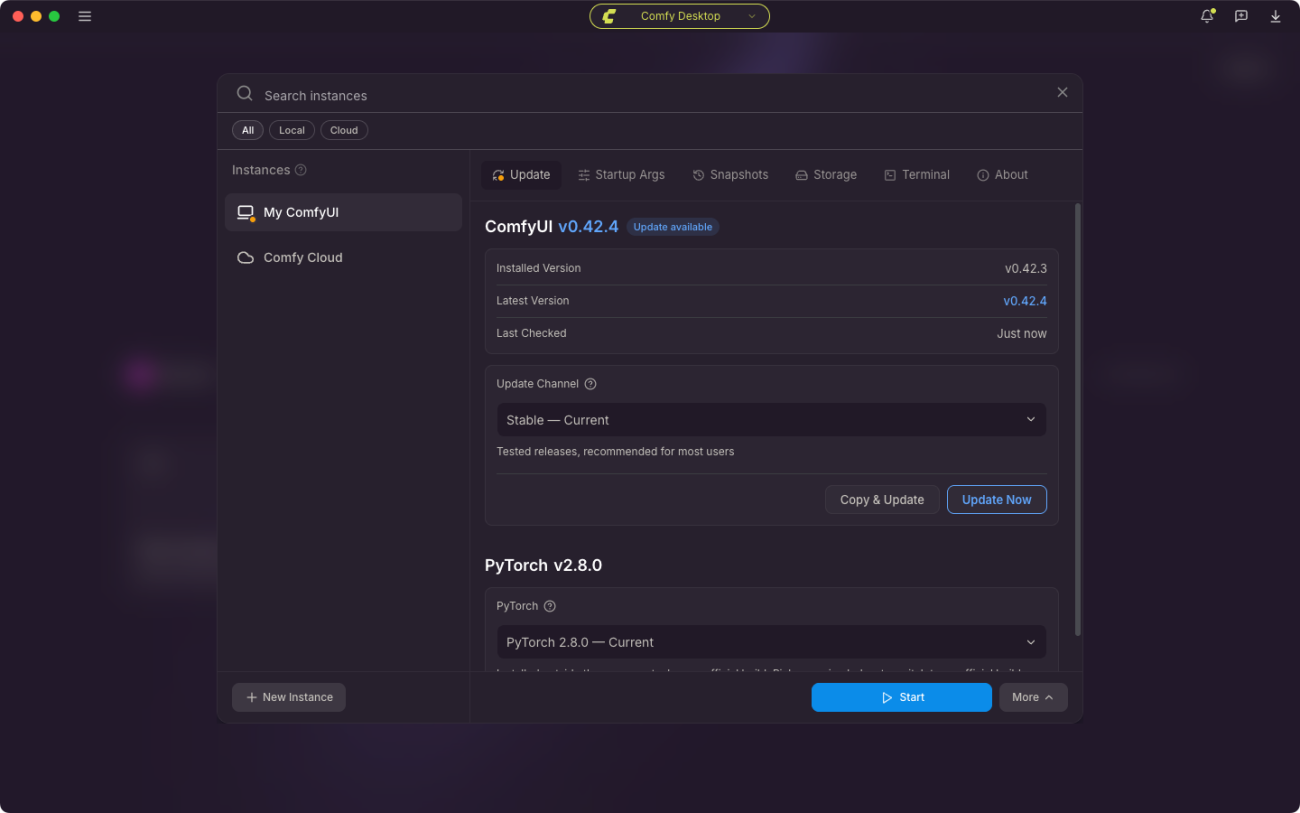
Current Desktop documentation separates application updates from updates to a ComfyUI instance. On the Chooser screen, open the instance card’s three-dot menu, choose Manage, and inspect Update. Stable is the default channel; Latest on GitHub tracks newer master-branch commits. Neither channel name promises that the destination is specifically v0.43.2.
Before updating, open Snapshots, choose Create Snapshot, and add a recognizable label. Export that snapshot or use Export All and store the file outside the instance. These records capture the ComfyUI commit, custom-node versions and pip package inventory. They do not replace your independent copies of models, workflows and media.
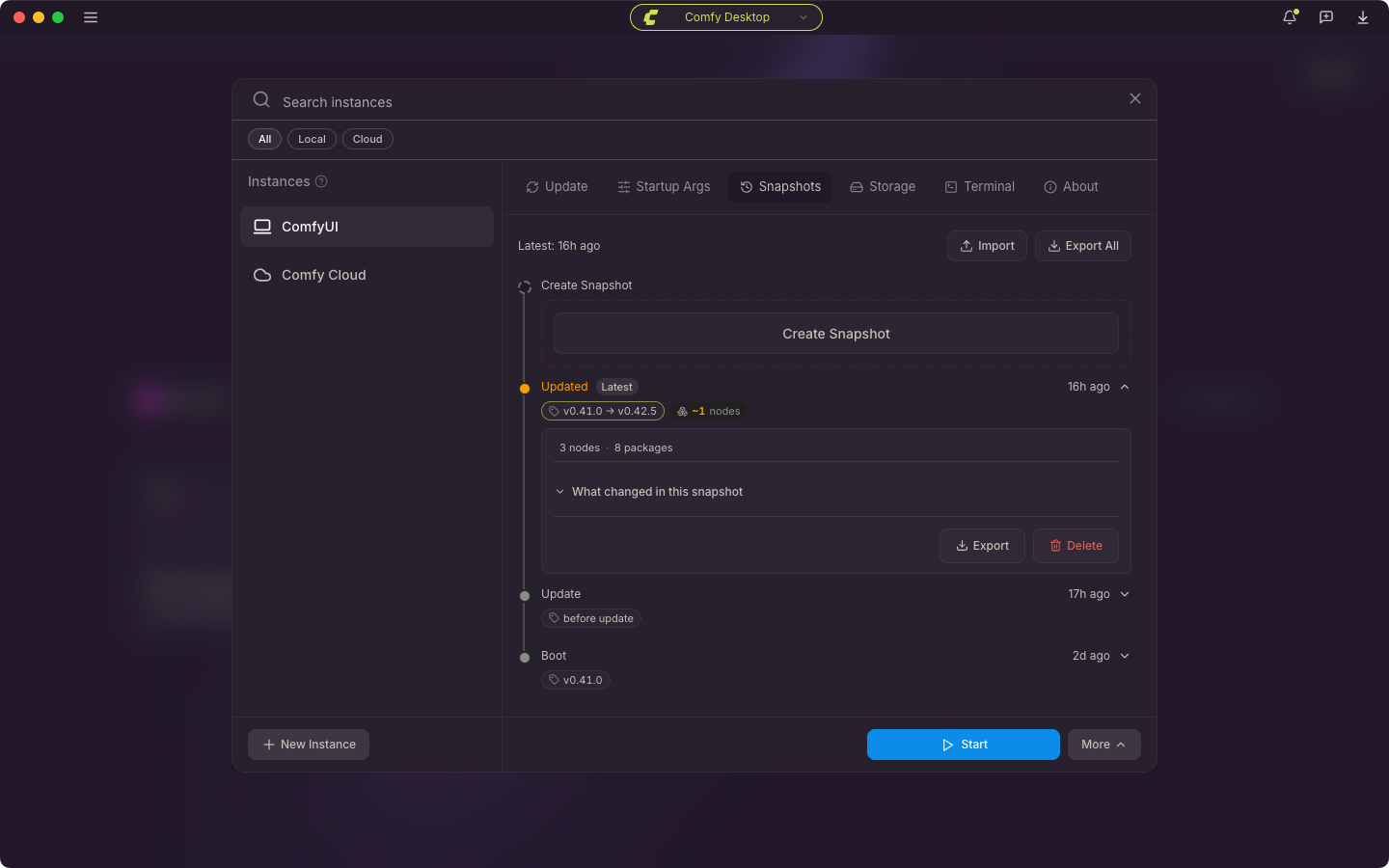
Back in Update, prefer Copy & Update when the selected channel offers the version you want. The documentation says this updates a copy while leaving the original untouched. Review the displayed destination and confirmation before proceeding. If Stable offers an older release, or Latest on GitHub points beyond this tag, do not describe that action as an exact v0.43.2 update. Use a separate Git-managed test installation for exact version selection rather than manually rewriting Desktop-managed files.
Do not combine this test with Change PyTorch. That is a separate operation with its own compatibility consequences. If your Desktop version lacks these documented instance controls, retain the full backup and follow the documentation for your actual app version instead of searching for nonexistent buttons.
Pin a Git-managed test copy to v0.43.2
Work on the test copy, leaving the recovery copy untouched. A copied manual-install code folder does not isolate Python: an activated environment can still belong to the original installation, and copied virtual environments may retain their old paths. Use the manual route only with a separately provisioned test environment that already matches your working stack. Check python -m pip --version and its environment path before installing packages. If that path belongs to production, stop. Windows Portable avoids this particular ambiguity by calling the copied embedded interpreter explicitly.
For a manual installation with that independent environment activated, enter the test directory containing main.py and requirements.txt, then run:
git fetch --tags origin
 git checkout --detach v0.43.2
 git rev-parse HEAD
 python -m pip install -r requirements.txt
 python -m pip check
 python -m pip show comfyui-frontend-package comfyui-workflow-templates comfyui-embedded-docs
The expected commit is 423cbd20511becb1f16122ab518e92e58bfa03d9, based on the upstream tag reference. Detached HEAD is intentional: you are testing one fixed revision, not following a moving branch. Stop if Git selects a different revision or refuses because of local changes. The dependency command follows ComfyUI’s update procedure, with python -m pip tying pip to the active interpreter.
From a copied Windows Portable installation’s outer folder, the equivalent PowerShell sequence is:
git -C .\ComfyUI fetch --tags origin
 git -C .\ComfyUI checkout --detach v0.43.2
 git -C .\ComfyUI rev-parse HEAD
 .\python_embeded\python.exe -m pip install -r .\ComfyUI\requirements.txt
 .\python_embeded\python.exe -m pip check
 .\python_embeded\python.exe -m pip show comfyui-frontend-package comfyui-workflow-templates comfyui-embedded-docs
Check the installation output rather than assuming the requirements command succeeded. The tagged requirements file specifies frontend package 1.57.4, workflow templates 0.11.100 and embedded documentation 0.5.15. Compare those values with pip’s installed-package output. They are this tag’s declared combination, not a certification of your entire node collection. Pip check detects missing or incompatible declared dependencies; it does not test image generation or every native extension.
The normal Portable scripts serve a different purpose. According to ComfyUI’s update guide, update_comfyui.bat follows development and update_comfyui_stable.bat follows stable releases. Neither is an exact-tag selector. Avoid update_comfyui_and_python_dependencies.bat for this controlled test: the documentation warns that its broader dependency and PyTorch changes can break existing custom-node requirements.
Verify basic execution without downloading a model
Launch the updated test installation with custom nodes disabled. In a manual installation, use:
python main.py --disable-all-custom-nodesFor Windows Portable, use its embedded interpreter from the outer folder:
.\python_embeded\python.exe -s ComfyUI\main.py --windows-standalone-build --disable-all-custom-nodesRetain any required hardware-specific argument from your working launcher, such as an existing CPU configuration. Do not start the old and new installation on the same port simultaneously. Read the startup log for dependency errors and the reported frontend version before opening the displayed local address.
Make a new blank workflow for the first test. Add the built-in Load Image and Save Image nodes using node search. Their verified class identifiers in the tagged core node source are LoadImage and SaveImage. Load Image returns IMAGE and MASK outputs; Save Image accepts an images input. Connect the IMAGE output to that input, leaving MASK unused.
Select a small, ordinary RGB PNG that you own. You can place it in the installation’s configured input directory and select it in Load Image. The default is ComfyUI/input; an overridden input path or Desktop shared folder takes precedence. Set Save Image’s filename_prefix to update-check-0432 and run the graph once.
There is no model or workflow download link to follow because this graph uses two bundled nodes and your own input file. There is also no prompt, sampler or generation seed to set. Those controls belong to generation workflows and would add unrelated dependencies to this first check.
The expected result, based on the node implementation, is a PNG with the chosen filename prefix in the configured output directory, normally ComfyUI/output. Open it and check that it shows your input image at the expected dimensions. Do not require identical file hashes: Save Image re-encodes the image and can add metadata. Save the graph separately as JSON and reopen it to check that the connection and selected input survive.
This is a deliberately narrow acceptance test. It checks basic graph execution, image input, output writing and workflow persistence. It does not prove that a diffusion model, video decoder, accelerator kernel or custom node works. The procedure here was checked against upstream source; no ComfyUI runtime or inference test was performed for this article.
Reintroduce your real workflow and isolate failures
Stop the clean test, remove only the temporary custom-node-disable flag, and launch normally. Open a copy of your previously successful workflow, not the only original. Confirm that required nodes resolve and that model selectors still point to the same installed files. Run its smallest useful existing configuration before returning to a longer batch. Keep its previous settings unchanged so you are testing the update rather than a different prompt or model.
If the basic two-node graph works but the production workflow fails, capture the first relevant traceback and identify the failing node. Missing templates or an abnormal frontend can indicate an incomplete core dependency update. A custom-node import failure needs investigation of that node’s requirements, not an automatic upgrade of every package.
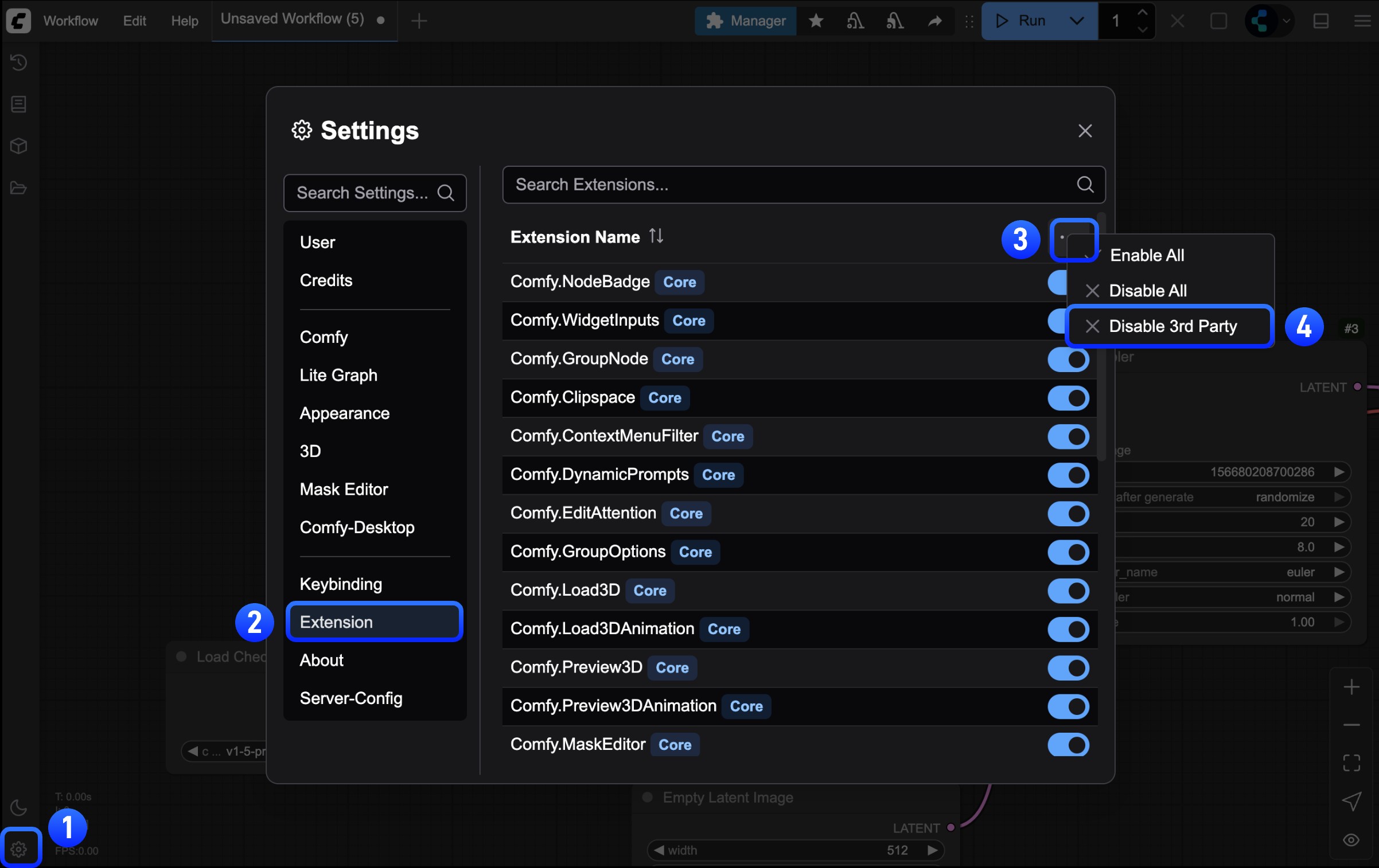
For interface or connection problems, the official troubleshooting guide recommends checking third-party frontend extensions. In Settings, open the Extension or Extensions panel and use Disable 3rd Party where available, then restart initially. Re-enable a subset and reload to narrow the culprit. If the frontend cannot open, use the command-line custom-node-disable flag first.
For backend node problems, back up custom_nodes before moving anything. Temporarily move half the node packs outside that directory, restart, and repeat the same failing test. Narrow the group associated with the failure instead of changing core code, torch and every node at once. Node interactions can complicate isolation, so confirm the suspected pack by reproducing the problem with its relevant dependencies present.
Roll back the environment, not just the code
If the test installation fails and you need to resume work, stop it and return to the untouched working copy. For Portable, restore the complete backed-up outer folder rather than mixing old code with a newly modified embedded Python directory. For a manual environment, restore the backed-up installation and environment at their original paths using your backup method.
Checking out the recorded previous commit reverses code selection, but it does not undo pip changes, custom-node updates or modified settings. Likewise, installing an older requirements file does not guarantee removal of newly introduced packages. Treat source rollback alone as incomplete recovery.
On a supported Desktop installation, open Snapshots, expand the pre-update snapshot, select Restore, inspect the proposed changes, then Confirm. The documented restore process can change custom nodes, pip packages and ComfyUI’s commit, and can run node post-install scripts. Restore only a snapshot you trust. After recovery, repeat the same baseline workflow before resuming a batch.
Keep the backup until the updated setup has passed both the model-free check and your actual workflow. Record the selected commit, installed core package versions and any node you had to disable. Those records make the next update a comparison against a known state rather than another attempt to reconstruct what used to work.
Sources
- Upstream v0.43.2 tag page and changes since v0.43.1.
- ComfyUI update procedures, Desktop instance management and snapshot restoration.
- Tagged requirements, core image-node source and custom-node troubleshooting.
- Git checkout reference, pip check reference and workflow concepts and saving.
Tags: ComfyUI, Tutorial, Backup, Python dependencies, Workflow validation
Supporting keywords: ComfyUI backup, ComfyUI rollback, ComfyUI update dependencies, ComfyUI workflow validation
Search intent: Informational, practical update and recovery tutorial